

WordPress Website Creation Guide
Step-by-Step for Beginners
Creating a website is one of the most valuable skills you can learn in today’s digital world. Whether you are a student, freelancer, business owner, or job seeker, learning how to create a WordPress website can help you build an online presence, showcase your skills, attract customers, and explore new career opportunities.
The good news is that you do not need to be an expert programmer to get started. WordPress provides flexible tools for creating blogs, business websites, portfolios, educational websites, and online stores.
In this WordPress website creation guide, you will learn how to set up your website step by step, choose the right theme, install essential plugins, create important pages, optimize your website for search engines, and publish your site successfully.
By the end of this guide, you will understand the website creation process and have a clear roadmap for building your own WordPress website.
If you want to develop practical website-building skills with expert guidance, explore our WordPress Training to learn how to create, customize, and manage professional websites.
What Is WordPress?
WordPress is a popular content management system (CMS) that allows users to create, manage, and publish website content without building everything from scratch.
It provides tools for managing pages, blog posts, images, menus, themes, plugins, and other website features. Furthermore, its flexibility makes it useful for beginners as well as experienced website developers.
There are two commonly discussed WordPress platforms:
- WordPress.org: The open-source WordPress software that you can install on your own hosting account. You generally have greater control over customization, plugins, and website management.
- WordPress.com: A hosted service that provides different website plans and manages much of the underlying infrastructure for you.
For this tutorial, we will primarily focus on a self-hosted WordPress.org website.
What Can You Create With WordPress?
WordPress can be used to create many different types of websites, including:
- Personal blogs and educational websites
- Business and corporate websites
- Freelancer portfolios and professional resumes
- Digital marketing and SEO websites
- Online stores using WooCommerce
- Membership and online learning websites
- News, magazine, and community websites
Therefore, learning WordPress can be useful for both personal projects and professional development.
Benefits of Creating a Website With WordPress
Before building your website, it helps to understand why WordPress is a practical choice.
1. Beginner-Friendly Website Management
WordPress offers an administrative dashboard where you can manage content, appearance, users, and settings. Many everyday tasks can be completed without writing code.
2. Flexible Design Options
You can select a theme, customize layouts, adjust colors, and use the WordPress block editor or compatible page-building tools to create a website that matches your goals.
3. SEO-Friendly Structure
WordPress allows you to create descriptive page URLs, organize content with headings, add image alt text, and use SEO plugins. However, installing WordPress alone does not guarantee high search rankings.
4. Expandable Features
Plugins allow you to add functionality such as contact forms, ecommerce, backups, security tools, and analytics.
5. Career and Business Opportunities
WordPress skills can support freelance projects, website maintenance services, digital marketing roles, and small-business website development.
For students, freelancers, and aspiring website developers looking for practical, instructor-guided learning, our WordPress Training in Hyderabad provides an opportunity to develop WordPress skills through hands-on website creation.
How to Create a WordPress Website Step by Step
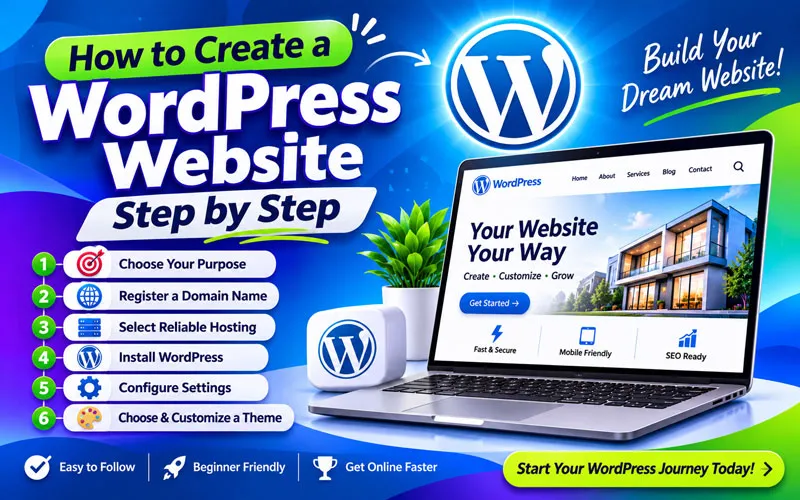
Follow the steps below to build a WordPress website from the planning stage to publication.
Step 1: Choose Your Website Purpose
First, decide what you want your website to achieve. A clear purpose makes it easier to select the right design, pages, and features.
For example, a freelancer may need a portfolio and enquiry form, while a business owner may need service pages and customer testimonials.
Identify Your Target Audience
Ask yourself these questions:
- Who will visit my website?
- What information are they looking for?
- What problems can my website solve?
- What action should visitors take?
Next, list the main topics or services your website will cover. This planning will help you build a useful website structure and create relevant content.
Step 2: Register a Domain Name
A domain name is your website’s address on the internet, such as example.com.
Choose a domain that is easy to remember, relevant to your brand, and simple to spell.
Tips for Choosing a Domain
- Keep it short and memorable.
- Use your brand name or a relevant phrase.
- Avoid unnecessary numbers and hyphens.
- Choose an appropriate domain extension.
- Check availability before registering.
- Make sure the name does not infringe on another brand.
Your domain name does not need to contain your primary keyword to rank in search results. A clear, trustworthy brand name is often a better long-term choice.
Step 3: Select Reliable Web Hosting
Web hosting stores your website’s files and makes them accessible online. Your hosting provider affects website performance, reliability, security, and ease of management.
What to Look for in WordPress Hosting
Consider the following features when comparing hosting providers:
- Reliable uptime and performance
- SSL certificate support
- Regular backup options
- Current PHP and database support
- WordPress-compatible server configuration
- Security features and technical support
- Sufficient storage and bandwidth for your needs
- Transparent renewal pricing
Beginners can start with a suitable shared hosting plan or managed WordPress hosting. As traffic and technical requirements grow, you can upgrade when necessary.
After purchasing hosting, connect your domain to the hosting account by following the provider’s instructions. This may involve changing nameservers or DNS records.
Step 4: Install WordPress
Many hosting providers offer a one-click WordPress installation option. The exact process depends on your hosting dashboard.
Basic WordPress Installation Process
1. Sign in to your hosting account.
2. Open the WordPress installer or website management section.
3. Select your domain name.
4. Enter your website title and administrator details.
5. Create a strong, unique administrator password.
6. Complete the installation.
7. Open your WordPress login page and sign in.
Your login address commonly looks like example.com/wp-admin, although some websites use customized login URLs.
Important: Use a strong password and enable additional authentication protection where available. Never share your administrator credentials publicly.
Once you log in, you will see the WordPress dashboard, which provides access to your website’s main management tools.
Step 5: Configure Essential WordPress Settings
Before designing your website, configure its basic settings.
Set Your Website Title and Tagline
Navigate to Settings and then General. Add your website title and a concise tagline that explains your website’s purpose.
Configure Permalinks
Go to Settings and then Permalinks. For most content-focused websites, the Post name structure is a useful starting point because it creates readable URLs.
For example, use:
example.com/wordpress-website-creation-guide/
instead of a long URL containing unnecessary parameters.
If your website already has published pages, plan URL changes carefully and create appropriate redirects to avoid broken links.
Check Your Search Visibility
Review the option that discourages search engines from indexing your website under Settings and then Reading. Ensure that you have not accidentally left this option enabled when your public website is ready to be indexed.
This setting is not a substitute for a complete SEO or privacy configuration.
Step 6: Choose and Customize a WordPress Theme
A WordPress theme controls much of your website’s visual presentation and layout. Your choice should reflect your website’s purpose and provide a good experience on desktop and mobile devices.
How to Choose the Right Theme
Look for a theme that offers:
- Responsive layouts
- Fast loading performance
- Accessible design
- Regular maintenance and updates
- Compatibility with your required plugins
- Flexible typography and color settings
- Clear navigation and readable content layouts
You can explore themes through the official WordPress theme directory.
Customize Your Website Design
Depending on your selected theme, use the Site Editor or the Customizer to adjust the website’s appearance.
Focus on these elements:
- Logo and brand colors
- Header and footer
- Navigation menus
- Fonts and text sizes
- Page layouts and spacing
- Buttons and calls to action
- Mobile and tablet presentation
Keep the design consistent and avoid adding unnecessary animations, pop-ups, or decorative elements that distract visitors from your content.
Step 7: Install Essential WordPress Plugins
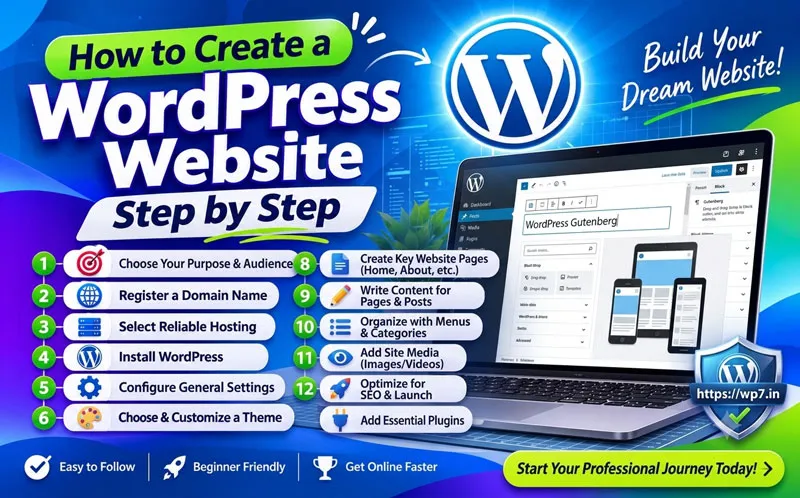
Plugins extend WordPress with additional functionality. However, installing too many unnecessary plugins can make maintenance more complicated.
Choose plugins according to your actual requirements.
Useful Plugin Categories for Beginners
SEO: An SEO plugin can help manage title tags, meta descriptions, XML sitemaps, and other optimization settings.
Security: Security tools can help strengthen login protection and monitor suspicious activity.
Backups: Backup plugins or hosting backup services can help you restore your website after a problem.
Contact forms: A form plugin can allow visitors to send enquiries, request quotations, or contact your business.
Performance: Caching and optimization tools can improve loading performance when properly configured.
Ecommerce: WooCommerce can add product listings, shopping cart functionality, and online checkout features.
Before installing any plugin, check its compatibility, update history, support information, and reputation. Install it from a trustworthy source and remove plugins that you no longer use.
Step 8: Create Important Website Pages
After configuring your design and plugins, create the main pages your visitors need.
Home Page
Your homepage should explain what your website offers, who it serves, and what visitors should do next. Include a clear headline, supporting information, relevant visuals, and a strong call to action.
About Page
Introduce your business, training program, expertise, or mission. Explain how your website can help visitors and provide accurate information about your experience.
Services or Courses Page
If you provide WordPress training, describe your courses, learning outcomes, target audience, and available learning options.
Contact Page
Include a suitable contact form or business contact details. Make it easy for visitors to ask questions or request more information.
Blog Page
Publish helpful articles that answer your audience’s questions. For a WordPress training website, topics might include website creation, theme selection, plugin tutorials, SEO basics, and troubleshooting.
Privacy Policy and Other Required Pages
Create a privacy policy and any other legal disclosures appropriate to your website, business model, and jurisdiction. Ecommerce websites may also need terms, refund information, shipping details, and other policies.
Use the correct WordPress page and post features. Pages generally suit relatively stable information, while posts are useful for dated articles and regularly published content.
Step 9: Add High-Quality Content
Content helps visitors understand your website and decide whether it meets their needs.
Start with a clear content plan based on your audience’s questions and search intent.
Write Helpful and Readable Content
Follow these practices:
- Use descriptive H2 and H3 headings.
- Keep paragraphs focused on one main idea.
- Explain technical terms in beginner-friendly language.
- Use bullet points for instructions and key takeaways.
- Include original examples and practical steps.
- Add relevant internal links to supporting articles.
- Check grammar, accuracy, and spelling before publishing.
For example, a WordPress training website could publish tutorials about installing WordPress, creating pages, customizing themes, choosing plugins, and improving website speed.
Avoid copying content from other websites or publishing large volumes of repetitive, low-value articles. Focus on genuinely helping your readers.
Step 10: Optimize Your WordPress Website for SEO
Search engine optimization helps search engines discover, understand, and evaluate your website. Although rankings cannot be guaranteed, sound SEO practices improve your website’s technical foundation and content quality.
On-Page SEO Best Practices
Choose a primary keyword: Identify the main question or topic each page addresses.
Write a descriptive title: Include the main topic naturally and make the title useful to searchers.
Create a compelling meta description: Summarize the page accurately and explain why it is worth visiting. Search engines may generate a different snippet.
Use clear headings: Organize content logically using H2, H3, and H4 headings where appropriate.
Optimize URLs: Use concise, descriptive slugs and avoid unnecessary changes to established URLs.
Add internal links: Connect related pages to help visitors discover additional information and help search engines understand your site’s structure.
Optimize images: Use descriptive filenames, suitable image dimensions, compressed formats, and meaningful alt text when an image conveys information.
Technical SEO Essentials
In addition to on-page optimization:
- Make sure your website uses HTTPS.
- Generate and submit an XML sitemap where appropriate.
- Connect Google Search Console.
- Check that important pages are indexable.
- Fix broken internal links.
- Review mobile usability and loading performance.
- Use canonical URLs appropriately when duplicate or similar URLs exist.
Remember that SEO is an ongoing process. Review your website’s performance and update content when information becomes outdated or visitor needs change.
Step 11: Improve Website Speed and Security
A professional website should load efficiently, protect visitor information, and remain easy to maintain.
Website Speed Improvements
Consider these actions:
- Compress images before uploading them.
- Use modern image formats such as WebP where suitable.
- Choose hosting that meets your performance needs.
- Enable appropriate caching.
- Remove unused themes and plugins.
- Limit unnecessary scripts and heavy visual effects.
- Test important pages on mobile devices.
You can use Google PageSpeed Insights to identify performance opportunities.
Website Security and Maintenance
Keep WordPress core, themes, and plugins updated. Maintain reliable backups and test your restoration process periodically.
Additionally, use strong passwords, restrict administrator access, and enable two-factor authentication where available. Use reputable security tools and monitor your website for unusual activity.
A backup is especially important before major updates or design changes.
Step 12: Test and Publish Your Website
Before launching your website, review its design, functionality, and content.
WordPress Website Launch Checklist
- Domain and HTTPS work correctly.
- Homepage and important pages load properly.
- Navigation menus and buttons work.
- Contact forms send enquiries successfully.
- Content is free of obvious errors.
- Images display correctly and have suitable alt text.
- Pages are readable on mobile devices.
- Important pages are not accidentally blocked from indexing.
- Backups and security measures are configured.
- Analytics and search monitoring are set up where appropriate.
- Privacy notices and relevant legal information are available.
Once everything is ready, publish your content and test the live website again.
However, launching your website is only the beginning. Continue improving your content, monitoring performance, fixing issues, and learning from visitor behaviour.
Common WordPress Website Creation Mistakes to Avoid
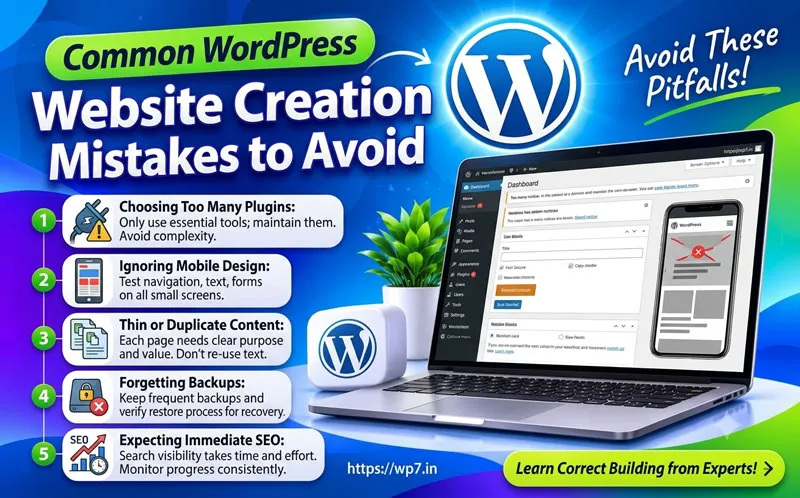 Beginners often make avoidable mistakes when building their first website.
Choosing Too Many Plugins
Installing plugins for every small feature can increase complexity. Choose only the tools you need and maintain them properly.
Ignoring Mobile Design
Many visitors browse on mobile devices. Test navigation, text size, buttons, images, and forms on smaller screens.
Publishing Thin or Duplicate Content
Pages should provide useful information and a clear purpose. Avoid creating multiple pages that target the same intent without offering distinct value.
Forgetting Backups
Technical errors, compromised accounts, or failed updates can cause problems. Maintain backups and verify that your recovery process works.
Expecting Immediate SEO Results
Search visibility often takes time and depends on competition, technical health, content relevance, and other factors. Monitor progress and improve your pages consistently.
FAQ’s About WordPress Website Creation
Yes. You can create many types of WordPress websites using themes, the block editor, and plugins without writing code. However, HTML, CSS, JavaScript, or PHP knowledge can help when you need advanced customization.
Yes. WordPress offers a dashboard and visual editing tools that make common website tasks accessible to beginners. Learning the basics of domains, hosting, themes, plugins, and website management will make the process easier.
The cost depends on your domain, hosting, premium themes, plugins, and professional services. Some components are available free, while hosting and domain registration generally involve recurring costs. Compare current pricing and renewal terms before purchasing.
A simple website may take a few hours or several days, depending on preparation and experience. Larger websites with custom design, ecommerce, or extensive content can take considerably longer.
The WordPress.org software is free and open source. However, a self-hosted website typically requires paid hosting and a domain. Optional premium themes, plugins, and professional services may add costs.
The best theme depends on your website’s purpose, performance requirements, accessibility, and customization needs. Choose a well-maintained, responsive theme with the features you need rather than selecting one based only on appearance.
Start with plugins that address essential needs, such as SEO, backups, security, and contact forms. Add caching, ecommerce, analytics integrations, or other tools when your website requires them. Avoid installing overlapping plugins without a clear reason.
WordPress provides useful foundations for SEO, including editable content, readable URLs, headings, and support for SEO plugins. Good rankings still depend on content quality, search intent, technical implementation, competition, and other factors.
Yes. WooCommerce can add ecommerce functionality to a WordPress website. You can configure products, payment methods, shipping options, taxes, and checkout settings according to your business requirements.
Make sure important pages are publicly accessible and indexable, create useful content, provide clear internal links, and submit your sitemap through Google Search Console when appropriate. Google decides which pages to index, and submission does not guarantee inclusion or rankings.
Yes. WordPress skills can help you offer services such as website setup, page design, content publishing, maintenance, and basic SEO. Build practical projects and a portfolio to demonstrate your skills to potential clients.
Next, learn responsive design, content strategy, SEO, performance optimization, security, backups, and website analytics. As you progress, explore ecommerce, advanced customization, and client project workflows.
Conclusion: Start Creating Your WordPress Website Today
Creating a WordPress website becomes easier when you follow a clear process. Start by defining your goals, registering a domain, choosing suitable hosting, and installing
WordPress. Then select a theme, configure essential settings, create useful pages, and add the features your audience needs.
Next, focus on helpful content, SEO, website speed, security, and regular maintenance. These steps can help you build a professional website that supports your learning, career, or business goals.
You do not need to master every WordPress feature before you begin. Start with a simple website, practice each step, and improve it as your skills grow.
Ready to learn WordPress practically? Explore our WordPress training resources, follow beginner-friendly tutorials, and start building your own website with confidence. Whether you want to develop a personal portfolio, launch a business website, or build skills for freelance projects, your WordPress learning journey can start today.
Internal Resources to Explore
- WordPress Training in Hyderabad – WordPress is one of the most popular platforms for creating websites and managing online content. Whether you want to build a personal blog, business website, portfolio, news website, educational website, or online store, WordPress provides the tools you need to get started.
- WordPress Speed Guide – A fast website creates a better experience for visitors and helps improve search engine rankings. If your WordPress website loads slowly, visitors may leave before viewing your content.
- WordPress Security Guide – You will learn the basics of WordPress security, common threats, essential security settings, backups, updates, passwords, plugins, hosting security, and practical steps to secure your website.
- WordPress SEO Guide – SEO helps your WordPress website appear higher in Google search results. Better rankings means more visitors, leads, customers, and business opportunities.
- About Trainer – Elevate your digital skills under the mentorship of BTS, a seasoned industry authority with over 18+ years of hands-on expertise in the web development and digital marketing landscape.
- Contact Us – Ready to discuss your requirement? get in touch! Do you want to have a Website or Training that you think we will love or may be you just want to say hello to us?
- Domain and Web Hosting – a domain name is your website address, while web hosting is the online space where your website files are stored. Together, they allow people to find and access your website on the internet.
- WordPress Website Development – WordPress Website Development is the process of creating, designing, customizing, optimizing and maintaining a website using WordPress. It is one of the most popular ways to build websites