

What Is a WordPress Plugin?
A Complete Beginner’s Guide
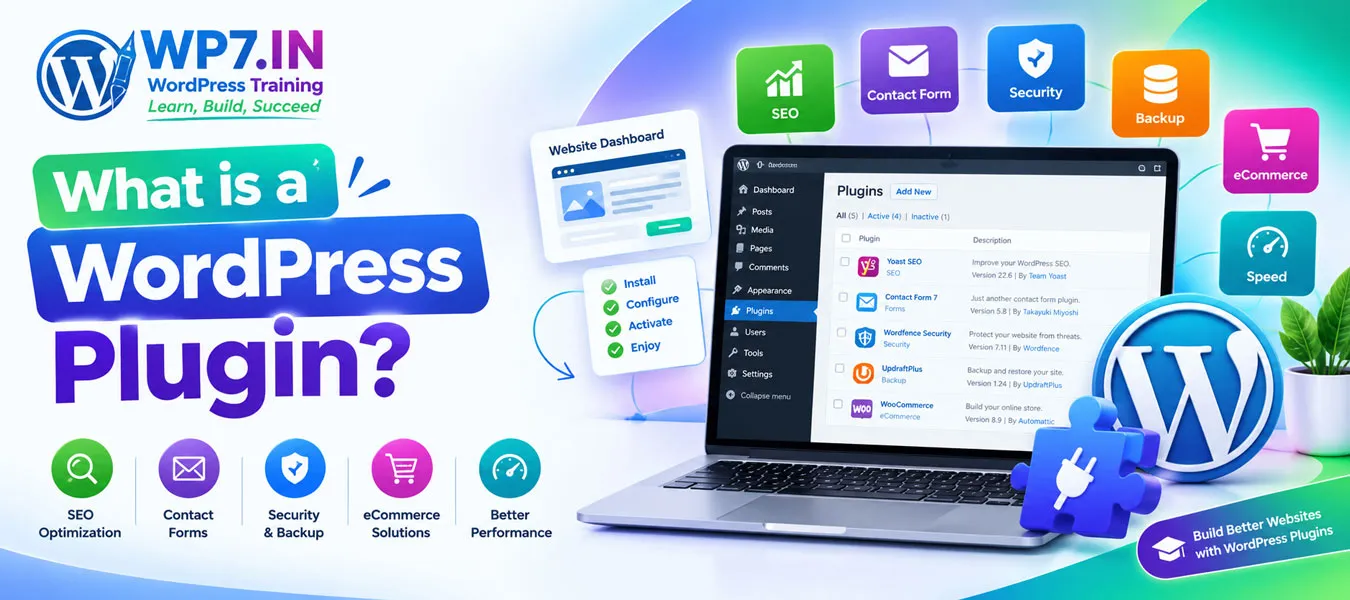
A WordPress plugin is a software add-on that extends the features and functionality of a WordPress website. It allows you to add new features without building everything from scratch or writing complex code.
For example, you can use plugins to improve your website’s SEO, create contact forms, secure your website, back up your files, build an online store, and improve website speed.
WordPress plugins make website development easier for beginners, students, freelancers, business owners, and professional web designers. Instead of developing every feature manually, you can install a suitable plugin and configure it to meet your requirements.
In this guide, you will learn what a WordPress plugin is, how it works, its different types, how to install plugins, and how to choose them safely.
What Is a WordPress Plugin?
A WordPress plugin is a piece of software that adds specific features or changes how a WordPress website works.
Think of WordPress as a basic smartphone. The smartphone provides essential functions, while apps allow you to add more capabilities. Similarly, WordPress provides the core website management system, and plugins let you extend its capabilities.
For example:
- An SEO plugin helps optimize your website for search engines.
- A contact form plugin lets visitors send enquiries.
- A security plugin provides additional protection features.
- A backup plugin helps create website backups.
- An eCommerce plugin helps you sell products online.
Therefore, plugins allow you to customize a WordPress website according to your goals.
WordPress plugins help you add useful features to your website, such as contact forms, SEO tools, security, backups, and eCommerce functionality. If you want to learn how to install, configure, and use plugins effectively, explore our WordPress Training to develop practical website-building skills.
Why Are WordPress Plugins Important?
Every website has different requirements. A blog may need SEO and social sharing features, while a business website may require contact forms, appointment bookings, and security tools.
Plugins help meet these requirements without developing each feature from the beginning.
Furthermore, many plugins offer free versions, making them useful for beginners who want to learn website development with a limited budget.
How Do WordPress Plugins Work?
WordPress plugins work with the WordPress core software to introduce additional features. Depending on the plugin, it may add options to the dashboard, change the appearance of a page, connect an external service, or perform tasks automatically.
For example, after installing an SEO plugin, you may see additional settings for page titles, meta descriptions, XML sitemaps, and other SEO features.
Similarly, installing a contact form plugin allows you to create a form and display it on a page using a block or shortcode, depending on the plugin.
A Simple Example
Suppose you are creating a website for your business. You want visitors to contact you, search engines to understand your pages, and customers to browse your services.
You could use:
- A contact form plugin to collect enquiries.
- An SEO plugin to manage selected SEO settings.
- A caching or performance plugin to improve loading performance.
- A backup plugin to create recoverable copies of your website.
However, installing a plugin does not automatically guarantee better rankings, complete security, or faster loading. Correct configuration and regular maintenance are also important.
Understanding WordPress plugins is an important step toward building professional websites. If you are a student, freelancer, job seeker, or business owner looking to gain hands-on experience, our WordPress Training in Hyderabad can help you learn essential WordPress concepts and website development skills.
What Are the Different Types of WordPress Plugins?
Thousands of plugins are available for different website requirements. The following categories are especially useful for beginners.
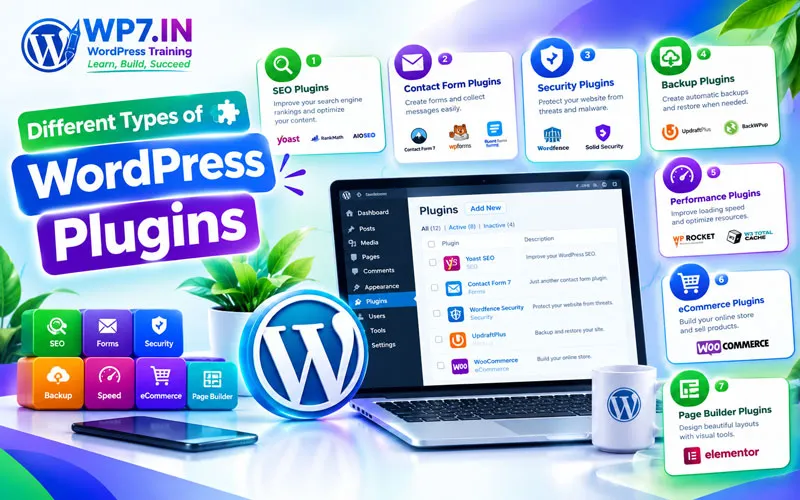
1. WordPress SEO Plugins
SEO plugins help you manage important search engine optimization tasks.
Common features include:
• Editing SEO titles and meta descriptions.
• Generating XML sitemaps.
• Adding selected structured data.
• Managing certain indexing settings.
• Providing on-page SEO recommendations.
Popular options include Yoast SEO, Rank Math, and All in One SEO.
Important: An SEO plugin supports your optimization process, but it cannot guarantee first-page Google rankings. Quality content, technical SEO, website usability, and relevant links also matter.
2. WordPress Contact Form Plugins
Contact form plugins allow visitors to send messages without displaying your email address directly on the page.
They are useful for business websites, training institutes, freelancers, and service providers.
Common features include:
• Name, email, and message fields.
• Course enquiry forms.
• Quote request forms.
• Form notifications.
• Spam prevention options.
Examples include Contact Form 7, WPForms, and Fluent Forms.
3. WordPress Security Plugins
Security plugins provide additional tools to protect websites from common threats.
Depending on the plugin, features may include malware scanning, login protection, firewall functionality, and security alerts.
Examples include Wordfence and Solid Security.
Nevertheless, a plugin alone cannot guarantee complete protection. Use strong passwords, keep software updated, restrict access, and maintain reliable backups.
4. WordPress Backup Plugins
Backup plugins help create copies of website files and databases. These copies can be useful if a website is damaged, compromised, or affected by a failed update.
Common features include:
• Scheduled backups.
• Database backups.
• Cloud storage integrations.
• Backup restoration tools.
Examples include UpdraftPlus and BackWPup.
Before relying on a backup plugin, check where backups are stored and whether restoration works correctly.
5. WordPress Performance Plugins
Performance plugins can help improve loading speed through features such as caching, file optimization, and selected resource-loading improvements.
Examples include WP Rocket and W3 Total Cache.
However, performance depends on several factors, including hosting quality, image sizes, theme design, database activity, and third-party scripts. Test your website before and after making changes.
6. WordPress eCommerce Plugins
eCommerce plugins help transform a standard website into an online store.
For example, WooCommerce supports product listings, shopping carts, checkout workflows, and order management.
These plugins are useful for entrepreneurs, retailers, freelancers, and businesses that want to sell products or services online.
7. WordPress Page Builder Plugins
Page builders provide visual tools for designing website layouts.
They can help you create landing pages, service pages, homepages, and other layouts with less direct coding.
Elementor is a popular example.
Before installing a page builder, check its compatibility with your theme and other plugins. Also, consider how it may affect website performance and future maintenance.
![Advantages of WordPress Plugins]()
 What Are the Advantages of WordPress Plugins?
Plugins offer several benefits to website owners and developers.
1. Add Features Without Building From Scratch
You can add forms, SEO tools, galleries, and other functions without developing each feature yourself.
2. Save Time and Development Costs
Many plugins provide ready-made solutions. As a result, you can spend more time on content, design, and business development.
3. Customize Your Website
Plugins help you adapt a website to different needs, from a personal blog to a business website or online store.
4. Support Business Growth
As your business grows, you may need booking forms, customer communication tools, analytics integrations, or eCommerce features. Suitable plugins can help meet these changing requirements.
5. Learn Website Development More Easily
Beginners can explore how different website features work through plugin settings and practical exercises. This is especially helpful when learning WordPress website development.
![Disadvantages of WordPress Plugins]()
 What Are the Disadvantages of WordPress Plugins?
Although plugins are useful, installing too many or choosing poor-quality software can cause problems.
1. Website Performance Issues
Some plugins add scripts, database queries, or external requests that increase loading time. The impact depends on how each plugin is developed and configured, not simply on the number of plugins installed.
2. Security Risks
Outdated, vulnerable, or poorly maintained plugins may create security weaknesses. Choose reputable plugins and install updates promptly after appropriate checks.
3. Compatibility Problems
A plugin may conflict with your theme, WordPress version, PHP version, or another plugin. This can lead to errors or broken website features.
4. Additional Maintenance
Plugins require regular reviews, updates, and testing. Some also require paid licenses or subscriptions for advanced features.
5. Unnecessary Features
Installing several plugins that perform the same task can create duplication and make website management more complicated.
Best practice: Install only the plugins you need, and remove inactive plugins that you no longer use after confirming they are not required.
6. WordPress eCommerce Plugins
eCommerce plugins help transform a standard website into an online store.
For example, WooCommerce supports product listings, shopping carts, checkout workflows, and order management.
These plugins are useful for entrepreneurs, retailers, freelancers, and businesses that want to sell products or services online.
7. WordPress Page Builder Plugins
Page builders provide visual tools for designing website layouts.
They can help you create landing pages, service pages, homepages, and other layouts with less direct coding.
Elementor is a popular example.
Before installing a page builder, check its compatibility with your theme and other plugins. Also, consider how it may affect website performance and future maintenance.
How to Install a WordPress Plugin
WordPress offers a built-in plugin directory for finding and installing many free plugins. Follow these steps to install a plugin from your dashboard.
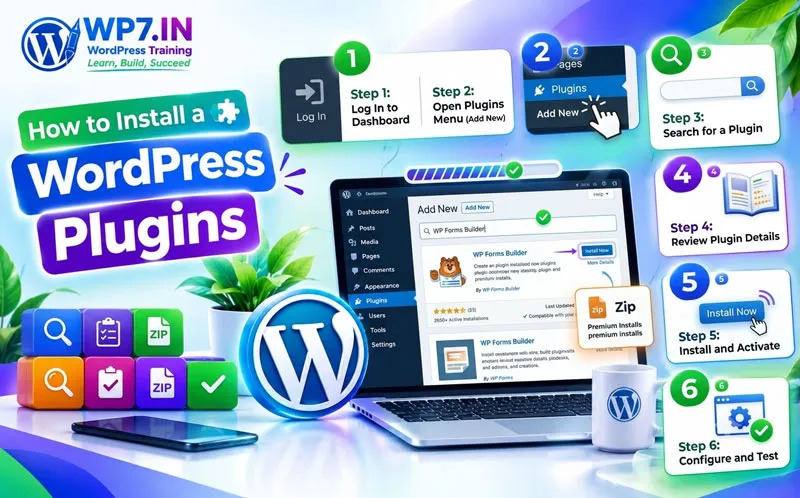
Step 1: Log In to Your WordPress Dashboard
Open your WordPress administration area and sign in with an account that has permission to manage plugins.
Step 2: Open the Plugins Menu
In the dashboard sidebar, click Plugins → Add New Plugin. The exact label may vary slightly by WordPress version.
Step 3: Search for a Plugin
Enter the name or purpose of the plugin in the search box. For example, search for a contact form plugin if you want to add an enquiry form.
Step 4: Review the Plugin Details
Before installation, check its description, features, compatibility information, update history, support activity, and user reviews.
Step 5: Install the Plugin
Click Install Now next to the plugin you want to use.
Step 6: Activate the Plugin
After installation, click Activate if you are ready to use it. Some plugins require additional configuration before their features work correctly.
Step 7: Configure and Test
Open the plugin’s settings and configure the required options. Then test the relevant website pages to ensure everything works as expected.
Tip: Back up your website before installing major plugins or making significant changes, especially on a live business website.
How to Install a Premium or Third-Party Plugin
Some plugins are distributed as ZIP files through their developers’ websites.
To install one:
1. Obtain the plugin ZIP file from a trusted source.
2. Open Plugins → Add New Plugin.
3. Select the option to upload a plugin.
4. Choose the ZIP file and upload it.
5. Install and activate the plugin.
6. Follow the developer’s setup instructions.
Never upload plugin files from suspicious websites. A ZIP file may contain modified or malicious code.
Also, some managed hosting environments restrict plugin installation or certain plugin functions. Check your hosting plan before purchasing a plugin.
How to Choose the Best WordPress Plugin
Choosing the right plugin is essential for website performance, security, and long-term maintenance.
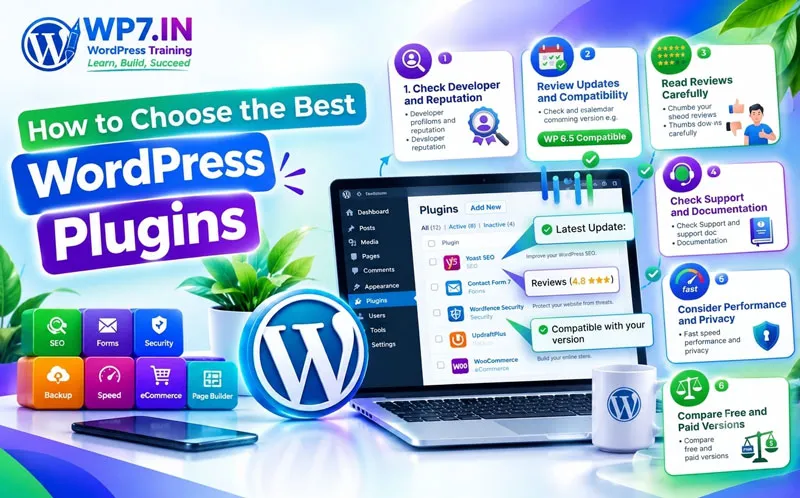
Check the Developer and Reputation
Look for a trustworthy developer with a clear website, documentation, and a history of maintaining the plugin.
Review Updates and Compatibility
Check when the plugin was last updated and whether it supports your WordPress environment. Recent updates are useful evidence of maintenance, although they do not guarantee quality or security.
Read Reviews Carefully
Reviews can reveal common problems and user experiences. However, consider the overall pattern rather than relying on one positive or negative review.
Check Support and Documentation
Good documentation helps you configure the plugin correctly. Active support can be especially important for business-critical features.
Consider Performance and Privacy
Check whether the plugin adds unnecessary scripts, collects personal information, or connects to external services. Review its privacy information and configure it appropriately.
Compare Free and Paid Versions
A free version may be enough for basic needs. However, advanced integrations, automation, or premium support may require a paid plan.
Choose based on your actual requirements instead of purchasing features you may never use.
![WordPress Plugin Best Practices]()
 WordPress Plugin Best Practices
Follow these recommendations to keep your website manageable and reliable.
• Install plugins only from trusted sources.
• Keep WordPress, themes, and plugins updated.
• Back up your website before significant changes.
• Test major updates on a staging site when possible.
• Avoid using multiple plugins for the same purpose unless there is a clear reason.
• Remove unused plugins when they are no longer required.
• Monitor website speed and important functionality.
• Use strong passwords and appropriate user permissions.
• Review plugin access to personal information and external services.
• Check your website after updates to forms, checkout pages, and other critical features.
For business websites, these practices reduce avoidable maintenance issues and help protect important customer interactions.
Do WordPress Plugins Affect SEO?
Yes, plugins can influence some aspects of SEO, but their impact depends on the plugin and how you use it.
An SEO plugin can help manage metadata, sitemaps, and certain technical settings. A performance plugin may improve loading speed when correctly configured. A broken plugin, however, may affect page rendering, indexing, or user experience.
To support SEO:
• Use an SEO plugin that meets your requirements.
• Keep important pages accessible to search engines.
• Optimize images and monitor page performance.
• Avoid duplicate or conflicting metadata settings.
• Test pages after significant plugin changes.
• Use Google Search Console to monitor indexing and search performance.
Remember, installing an SEO plugin does not automatically make a website rank higher. Useful content, clear site structure, search intent, and technical quality remain essential.
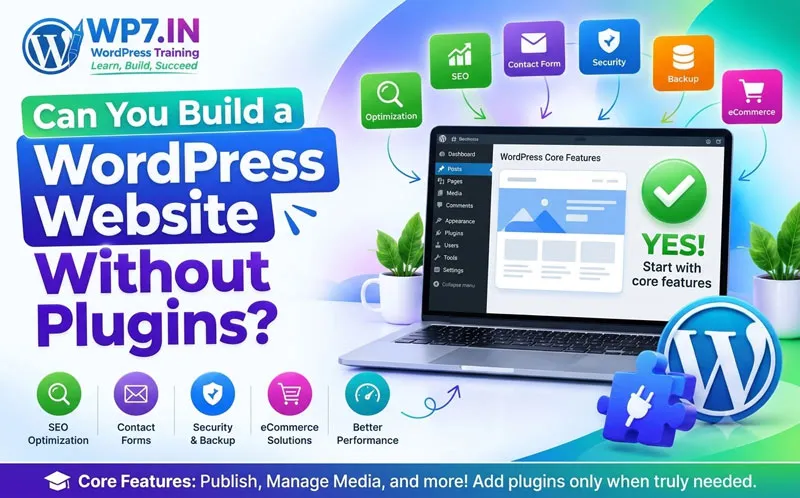
Can You Build a WordPress Website Without Plugins?
Yes. You can create and manage a basic WordPress website without installing additional plugins.
WordPress includes core features for publishing posts, creating pages, managing media, and building navigation. Your theme and hosting environment may also provide certain features.
However, you may need plugins for specific functions, such as advanced forms, online payments, backups, or specialized integrations.
The best approach is to start with the essential features and add plugins only when a genuine requirement arises.
FAQs About WordPress Plugins
A WordPress plugin is an add-on that gives your website extra features, such as contact forms, SEO tools, security options, or online shopping functionality.
Many WordPress plugins are free. Others offer free basic features and paid upgrades, while some are available only through paid licenses or subscriptions.
There is no fixed ideal number. Install the plugins you need and prioritize their quality, security, compatibility, and performance rather than aiming for a particular count.
Yes. Most plugins can be installed and configured through the WordPress dashboard without writing code. Some advanced customizations may require technical knowledge.
Plugins can be safe when obtained from reputable sources and maintained properly. However, vulnerabilities and compatibility problems are possible, so review plugin quality and keep software updated.
Deactivation stops the plugin from running its active functionality. Some features may disappear or stop working. Whether its settings and stored data remain depends on the plugin.
Yes, plugins can affect performance, particularly when they add heavy scripts, database operations, or external requests. However, the impact depends on the individual plugins and your hosting environment.
A theme mainly controls the website’s visual design and layout, while a plugin adds or changes functionality. Some themes also include extra features, but essential functionality should not unnecessarily depend on a theme.
Yes. Most WordPress websites use several plugins. However, incompatible plugins or overlapping features may cause conflicts, so test them carefully.
Open the Plugins section in your dashboard and review available updates. Back up your website when appropriate, apply updates, and test important pages and features afterward.
Yes. Developers can create custom plugins using PHP and WordPress APIs. Learning basic PHP, hooks, and WordPress coding standards is useful for advanced plugin development.
Choose plugins according to your website’s needs. A beginner may need an SEO plugin, contact form, backup solution, or security tool. Avoid installing every recommended plugin without evaluating its purpose.
Learn WordPress Website Development with WP7.IN
Would you like to build your own website and learn how WordPress works in practice?
At WP7.IN, you can learn WordPress website development through practical training designed for beginners, students, freelancers, job seekers, and business owners.
Learn how to create pages, manage themes, install and configure plugins, build contact forms, improve website SEO, and develop a website through hands-on practice.
You can also explore website speed optimization, security, hosting, and other important WordPress skills.
Start learning WordPress today and build the skills to create, manage, and grow your own website.
Visit WP7.IN to explore WordPress training options.
Call: 9010 39 2034
Learn, Build, Succeed.
Helpful Resources
To understand WordPress and related technologies better, you can explore these trusted resources:
You may also find these pages on WP7.IN helpful:
- What is WordPress – WordPress is a free and open-source Content Management System (CMS) used to create, manage, publish, and update website content.
- How WordPress Works – WordPress website works by connecting several important components: web hosting, WordPress software, a database, themes, plugins, media files, and a web browser.
- What is a WordPress Theme – A WordPress theme is a collection of files that controls the appearance, layout, design, and overall presentation of a WordPress website. In simple words, a theme determines how your website looks to visitors.
- What is a WordPress Plugin – A WordPress plugin is a software add-on that extends the features and functionality of a WordPress website. It allows you to add new features without building everything from scratch or writing complex code.
- WordPress Speed Guide – A fast website creates a better experience for visitors and helps improve search engine rankings. If your WordPress website loads slowly, visitors may leave before viewing your content.
- WordPress Security Guide – You will learn the basics of WordPress security, common threats, essential security settings, backups, updates, passwords, plugins, hosting security, and practical steps to secure your website.
- Domain and Web Hosting – a domain name is your website address, while web hosting is the online space where your website files are stored. Together, they allow people to find and access your website on the internet.
- WordPress SEO Guide – SEO helps your WordPress website appear higher in Google search results. Better rankings means more visitors, leads, customers, and business opportunities.
- WordPress Website Development – WordPress Website Development is the process of creating, designing, customizing, optimizing and maintaining a website using WordPress. It is one of the most popular ways to build websites
- About Trainer – Elevate your digital skills under the mentorship of BTS, a seasoned industry authority with over 18+ years of hands-on expertise in the web development and digital marketing landscape.
- Contact Us – Ready to discuss your requirement? get in touch! Do you want to have a Website or Training that you think we will love or may be you just want to say hello to us?
- WordPress Training in Hyderabad – WP7.IN provide practical, beginner-friendly WordPress training with live projects, one-to-one mentoring, and industry-focused lessons. Instead of only learning theory, you will build real websites from day one.
- WordPress Troubleshooting Guide – WordPress troubleshooting is the process of identifying the cause of a website problem and applying the correct solution. By understanding basic troubleshooting techniques, beginners can solve many common issues without unnecessary stress.